 Guardly
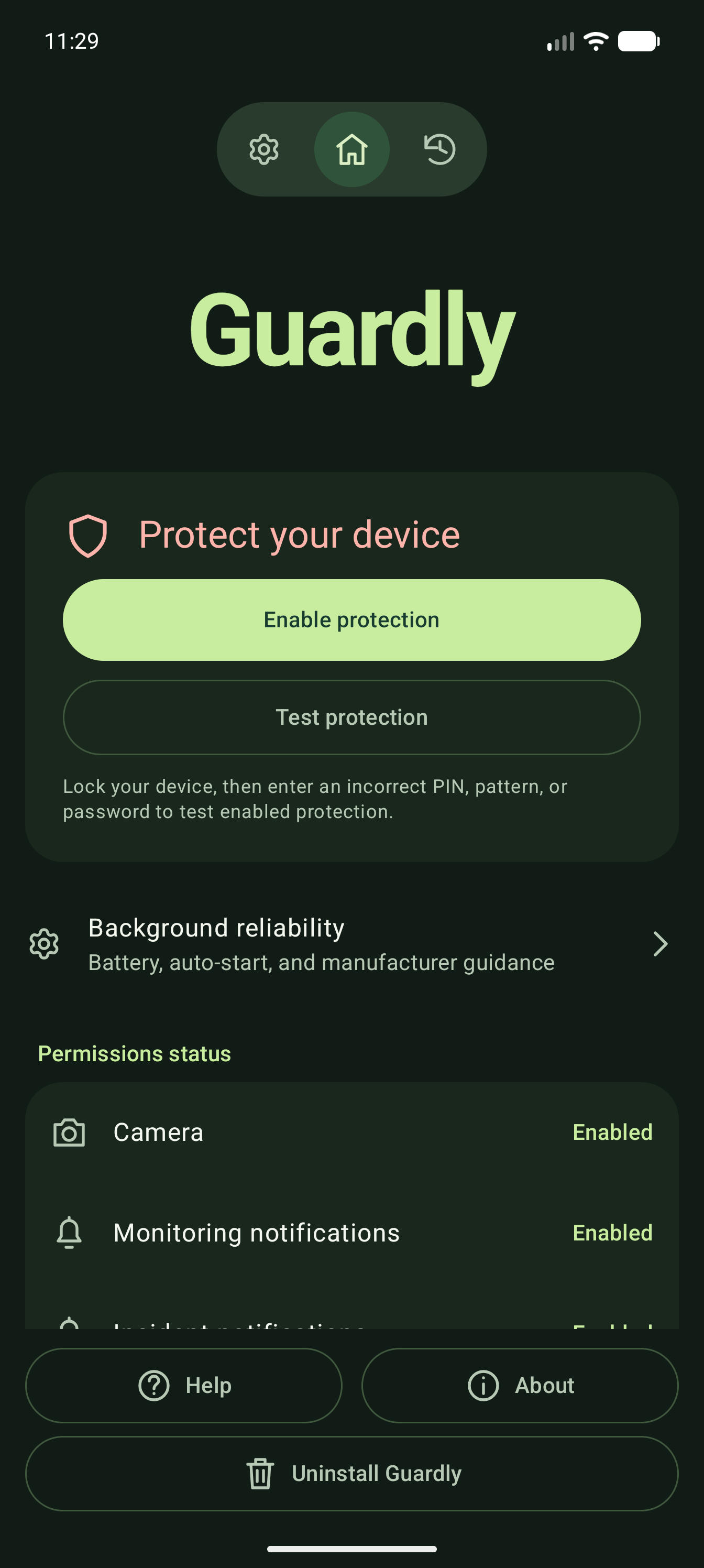
Set up Guardly before your phone goes missing. Test the response on your own Android device.
1. Set a screen lock
Use an Android PIN, pattern or password. Guardly responds to failed screen-lock attempts when protection and the required administrator access are enabled.
2. Choose what to capture
Set how many failed attempts trigger a response. Enable the photos, video and location features you want, then grant their permissions.
3. Connect email and Google Drive
For evidence you can access without the phone, connect your Google account. Turn on email alerts, choose your recipients and enable Drive backup.
4. Check background settings
Open Background reliability in Guardly. Review battery and auto-start settings so your manufacturer’s restrictions are less likely to interrupt protection.
5. Test your setup
Enable protection and tap Test protection. Reach your selected threshold by entering an incorrect screen-lock code. Unlock your phone and check History for the photos and video you configured. If you enabled delivery, check your inbox and Drive too.
If your phone is lost or erased
Sign in to your email and Google Drive from another device to look for successfully delivered evidence. Erasing the phone does not erase copies already in your Google account. Guardly cannot upload new evidence after it has been erased or removed.
Capture depends on Android permissions and device restrictions. Uploads and email require a working connection. Guardly cannot guarantee that a phone will be recovered.