 Guardly
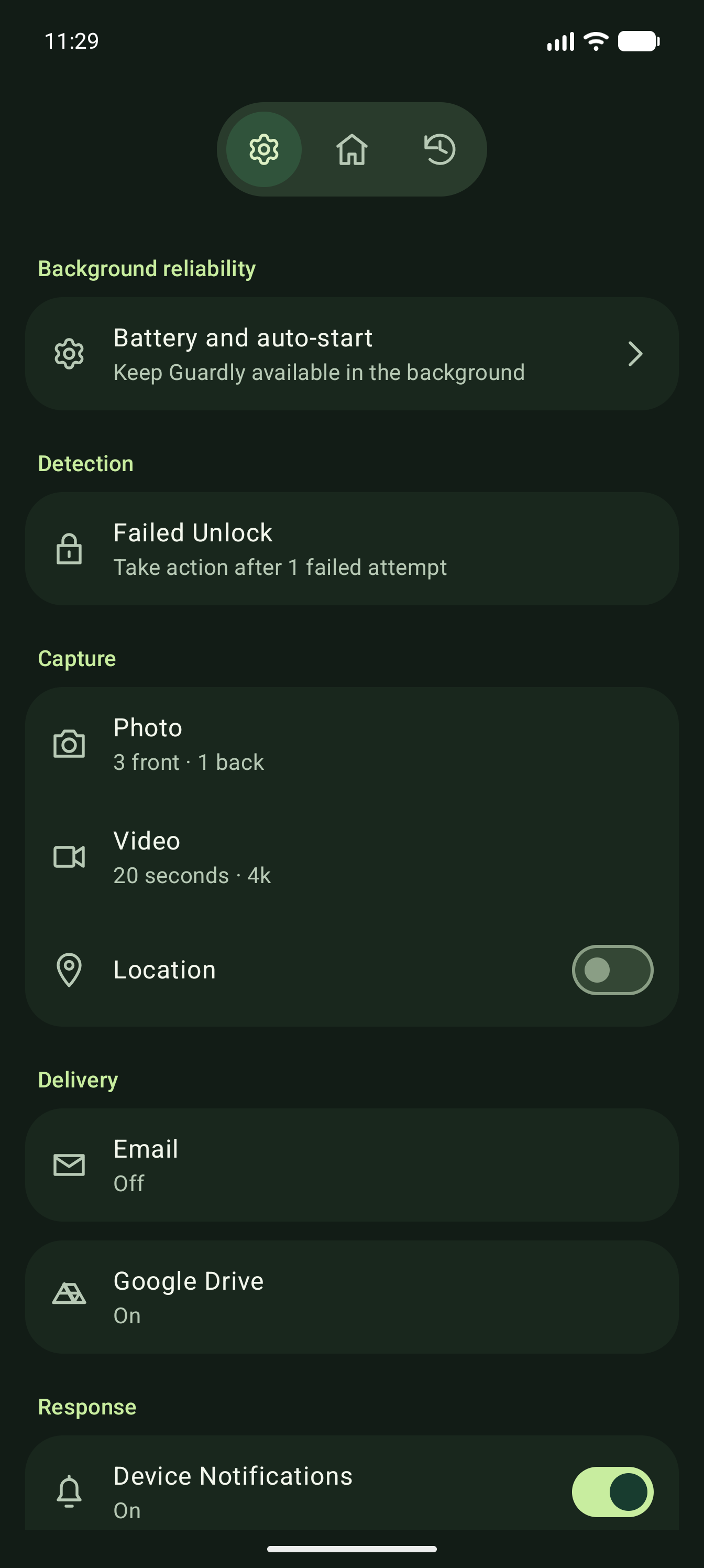
When someone tries to unlock your Android phone, Guardly helps you keep evidence of the attempt.
Photos: see who is holding your phone
Enable front-camera photos to capture the person facing the screen. Add back-camera photos to capture their surroundings. Choose how many photos each camera takes.
Video: capture what happens next
Enable recording for more context than a still photo. Choose the duration and quality your device supports. Microphone permission is needed when recording audio.
Location: put the incident on a map
Save an available location with the incident and use View location to open it on a map. Location accuracy and availability depend on permissions and device conditions.
Email: get the evidence away from the phone
Connect Gmail and choose your alert recipients. Guardly can send incident alerts with captured photos and video. Successful delivery depends on connectivity, authorization and email attachment limits.
Google Drive: keep another copy
Connect Google Drive to upload captured photos and videos. Files are organized under Guardly – Anti Theft System, then your device, media type and date. Copies successfully uploaded remain in your account if your phone is lost or erased.
History: review the whole incident
See saved photos and video together with the incident’s date, time and available location. Switch between list and grid views, and open media full screen.
Your response settings
Choose the failed-attempt threshold, capture options and delivery features. Use Test protection to check the result on your own device.